![Pawlytics_Paw-1.png]](https://learn.pawlytics.com/hs-fs/hubfs/Pawlytics_Paw-1.png?height=40&name=Pawlytics_Paw-1.png)
This is where you can learn how to configure your Financial Settings to make the most out of all the tools available to you for sending, tracking, and recording payments and expenses.
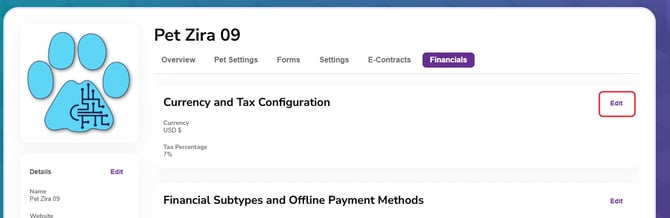
Currency and Tax Configuration
This information is already pulling from the Settings tab in your Organization Settings. If for some reason that was never set before, you can click the edit button to set your default Currency and Tax Percentage.
Reminder: Tax Percentage is necessary if your rescue sells merchandise or "swag". If you haven't been collecting tax on these items before, your rescue was paying the cost of it instead of the purchaser.
Financial Subtypes and Offline Payment Methods
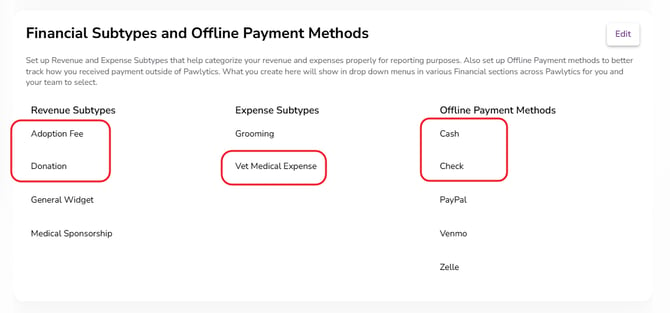
Revenue Subtypes - Categories for which payment or funds coming into your rescue. *By default, your rescue will start with "Adoption Fee" and "Donation" as Revenue Subtypes.
Expense Subtypes - Categories for your rescue's outgoing money. *By default, your rescue will start with "Vet Medical Expense" as an Expense Subtype.
Offline Payment Methods - Any way that your rescue collects donations other than credit card payments. *By default, your rescue will start with "Cash" and "Check" as potential Offline Payment Methods.
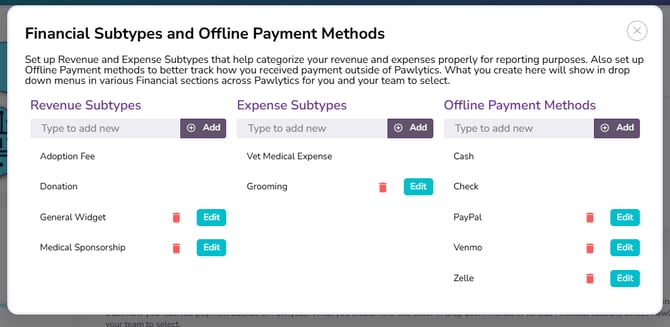
Click edit to add your personalized options under any of these categories:
*Default subtypes and payment methods cannot be deleted.
Invoice Settings
Click here to learn how to set up Invoice Templates!
Payment Widgets
Click here to learn how to set up Payment Widgets!
Receipt Settings
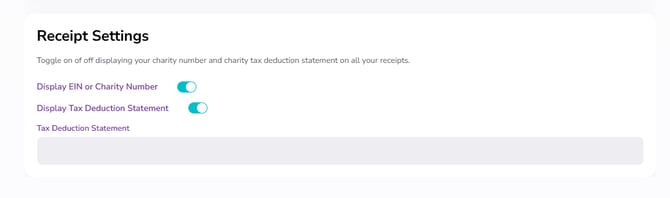
This is where you can toggle on or off having your EIN/Charity Number display on your receipts or displaying your custom Tax Deduction Statement.
Example for US-based organizations: "Paws Rescue is a non-profit organization with tax-exempt status under Section 501(c)(3) of the Internal Revenue Code."