---
title: How to use text templates
description: Once you have created your text templates, you are ready to use them to save your rescue time when inputting data!
---
[Skip to content](https://learn.pawlytics.com/en/knowledge/how-to-use-text-templates#main-content)
English
Show submenu for translations
![Pawlytics\_Paw-1.png\]](https://learn.pawlytics.com/hs-fs/hubfs/Pawlytics_Paw-1.png?height=40&name=Pawlytics_Paw-1.png)
Open main navigation
Close main navigation
- English
Show submenu for translations
- [Go to app.pawlytics.com](https://app.pawlytics.com/)
[Go to app.pawlytics.com](https://app.pawlytics.com/)
Welcome! HOWL can we help you?
- There are no suggestions because the search field is empty.
1. [Pawlytics Help Center](https://learn.pawlytics.com/en/knowledge?hsLang=en)
2. [Pets](https://learn.pawlytics.com/en/knowledge/pets?hsLang=en)
# How to use text templates
## Once you have created your text templates, you are ready to use them to save your rescue time when inputting data!
After creating your text templates in your Organization Settings by admin levels in your rescue, every role will be able to use them when inputting information into a pet's medical data and reminders. [*To learn how to CREATE text templates, click here.*](https://learn.pawlytics.com/en/knowledge/how-to-create-text-templates?hsLang=en)
Begin by adding a new medical event. To do this click on a pet's profile and navigate to their medical tab. Click the teal text that says '+ Quick Add Medical Event.' To learn more about *[entering medical events, click here](https://learn.pawlytics.com/en/knowledge/add-medical-events?hsLang=en)*.
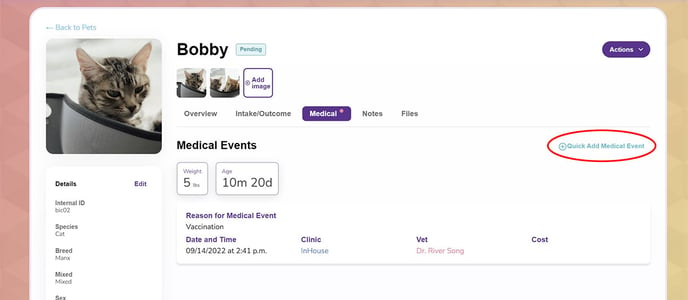
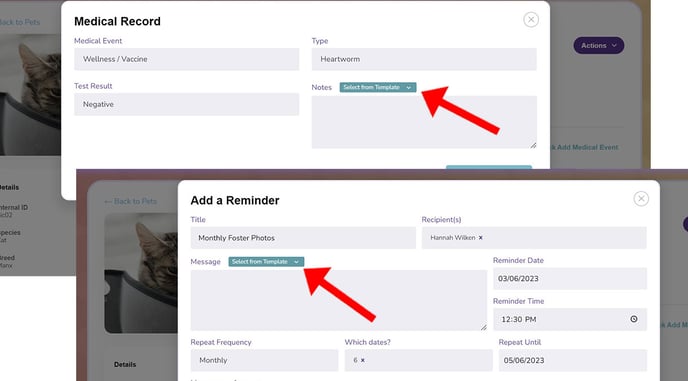
Now that the medical event has been created, you will want to fill in the Medical Items, Notes, Documents, and Reminders. When you select the white button under Medical Items labeled 'Add Medical Record' you'll be able to in the module select the teal button with your templates. Under the Reminders section when you select the button labeled 'Add Reminder' you'll find a teal button in the module to select your Reminder text templates.
Medical Comments and Description Templates will ***only show*** in the medical record section and Reminder Message Templates will ***only show*** in the reminders section.
- [Pets](https://learn.pawlytics.com/en/knowledge/pets?hsLang=en#main-content)
- [Medical Care](https://learn.pawlytics.com/en/knowledge/pets?hsLang=en#medical-care)
- [Getting Started](https://learn.pawlytics.com/en/knowledge/getting-started?hsLang=en)
- [People](https://learn.pawlytics.com/en/knowledge/people?hsLang=en)
- [Users](https://learn.pawlytics.com/en/knowledge/users?hsLang=en)
- [About Pawlytics](https://learn.pawlytics.com/en/knowledge/about-pawlytics?hsLang=en)
- [Applications](https://learn.pawlytics.com/en/knowledge/applications?hsLang=en)
- [Organization Settings](https://learn.pawlytics.com/en/knowledge/organization-settings?hsLang=en)
- [E-Contracts](https://learn.pawlytics.com/en/knowledge/e-contracts?hsLang=en)
- [Financials](https://learn.pawlytics.com/en/knowledge/financials?hsLang=en)
- [Your Partners](https://learn.pawlytics.com/en/knowledge/your-partners?hsLang=en)
- [Pawlytics Partners](https://learn.pawlytics.com/en/knowledge/pawlytics-partners?hsLang=en)
- [Automatic Microchip Registrations](https://learn.pawlytics.com/en/knowledge/automatic-microchip-registrations?hsLang=en#main-content)
- [AKC Reunite](https://learn.pawlytics.com/en/knowledge/automatic-microchip-registrations?hsLang=en#akc-reunite)
- [HomeAgain](https://learn.pawlytics.com/en/knowledge/automatic-microchip-registrations?hsLang=en#homeagain)
- [PetLink](https://learn.pawlytics.com/en/knowledge/automatic-microchip-registrations?hsLang=en#petlink)
- [SmartTag](https://learn.pawlytics.com/en/knowledge/automatic-microchip-registrations?hsLang=en#smarttag)
- [Reporting](https://learn.pawlytics.com/en/knowledge/reporting?hsLang=en)
- [FUR-cus Groups](https://learn.pawlytics.com/en/knowledge/fur-cus-groups?hsLang=en)
[](http://pawlytics.com)
pawlytics.com Help Center
Copyright © 2026, Pawlytics
```json
{
"@context" : "https://schema.org",
"@type" : "VideoObject",
"contentUrl" : "https://8669442.fs1.hubspotusercontent-na2.net/hubfs/8669442/usingTextTemplates_MedicalCommentsReminders.mkv",
"dateModified" : "2023-03-16T17:27:45.809Z",
"duration" : "PT2M53S",
"height" : 1080,
"name" : "usingTextTemplates_MedicalCommentsReminders",
"thumbnailUrl" : "https://8669442.fs1.hubspotusercontent-na2.net/hubfs/8669442/usingTextTemplates_MedicalCommentsReminders.mkv/medium.jpg",
"uploadDate" : "2023-03-16T17:27:34.424Z",
"width" : 1920
}
```