![Pawlytics_Paw-1.png]](https://learn.pawlytics.com/hs-fs/hubfs/Pawlytics_Paw-1.png?height=40&name=Pawlytics_Paw-1.png)
Each of the financial sections inside Pawlytics has a detailed transaction table breaking down your expenses and revenue. This table is actually so detailed, it doesn't fit on the screen and you have to scroll side to side to see everything 😅. So let's break down what all this can do!
Customize Your View
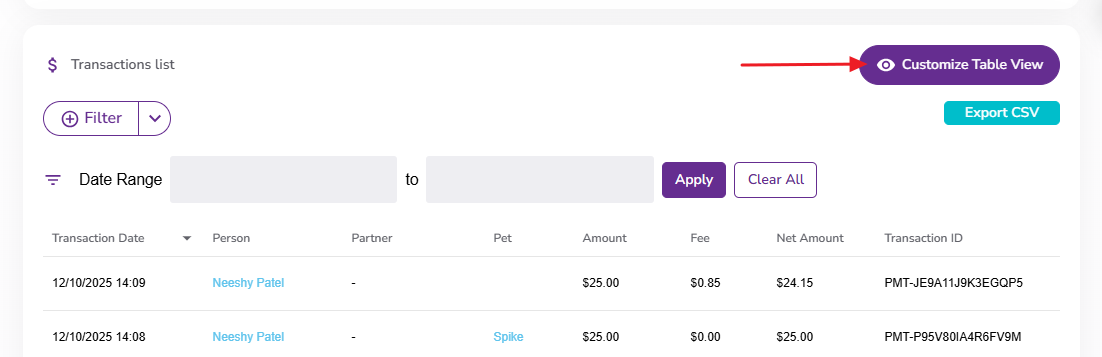
This table is huge! Every single detail about each payment is documented here so if all columns are visible, you will need to scroll side to side to see it all:
Click the button with the eyeball to choose how you'd like your table to look:
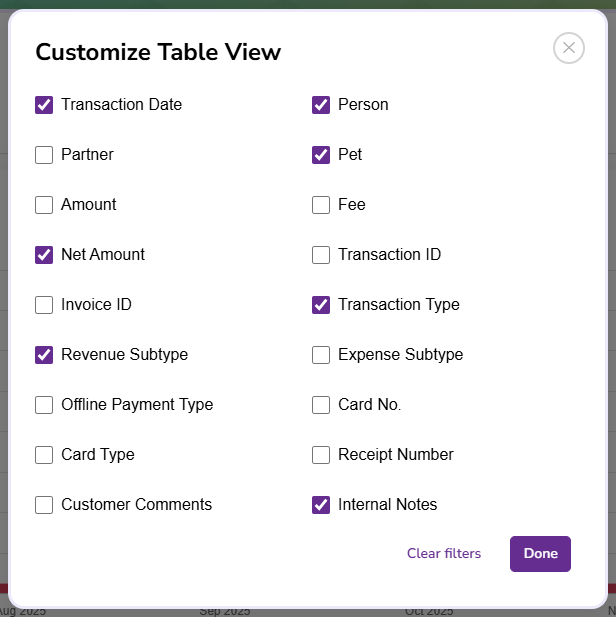
Click to remove any data points/columns you don't need and hit done:
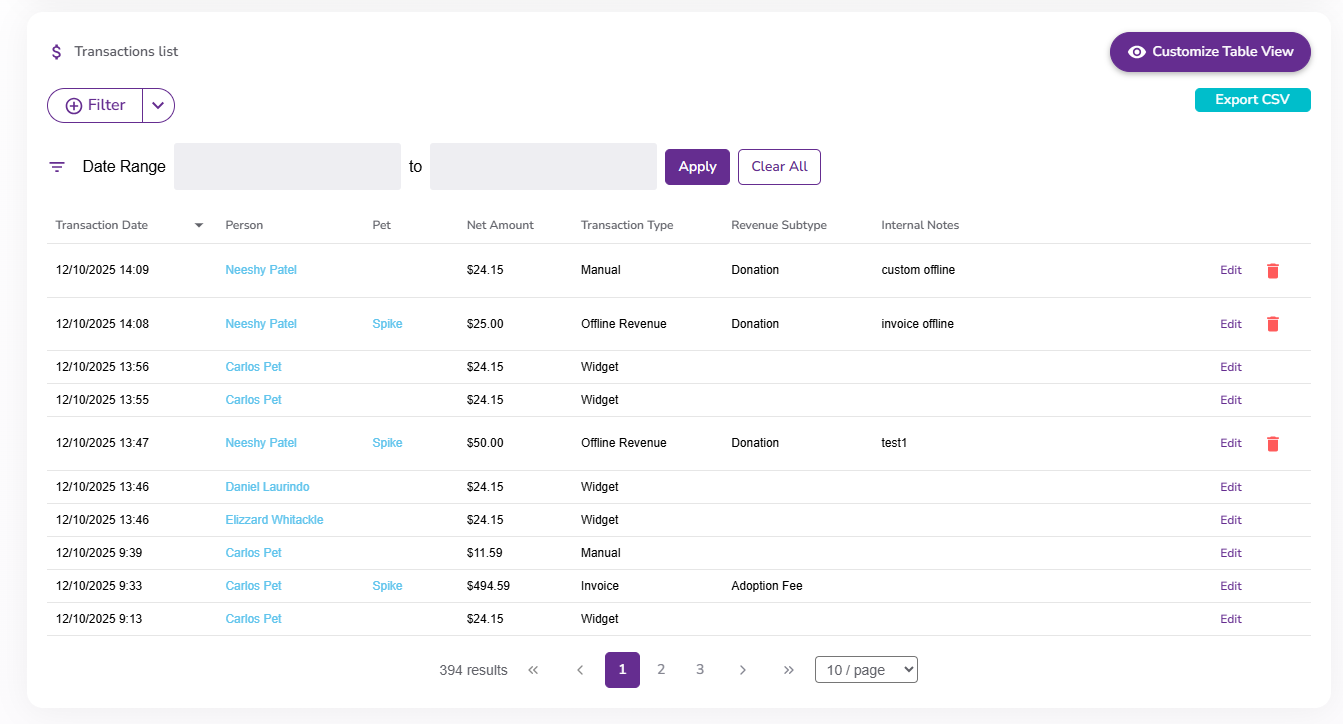
Voila! Now you can see what you need without having to scroll:
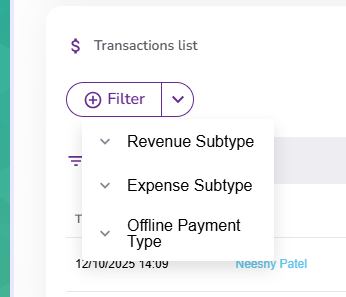
You can also choose to filter your transactions by the subtypes you created in your {financial settings}:
Or by a specific date range:

Note: Filtering on the transaction table is just as sticky as the rest of Pawlytics filters. Meaning every transaction table (in the financials section or under a specific pet, person, or partner profile) will also be viewed with these filters until you change them again.
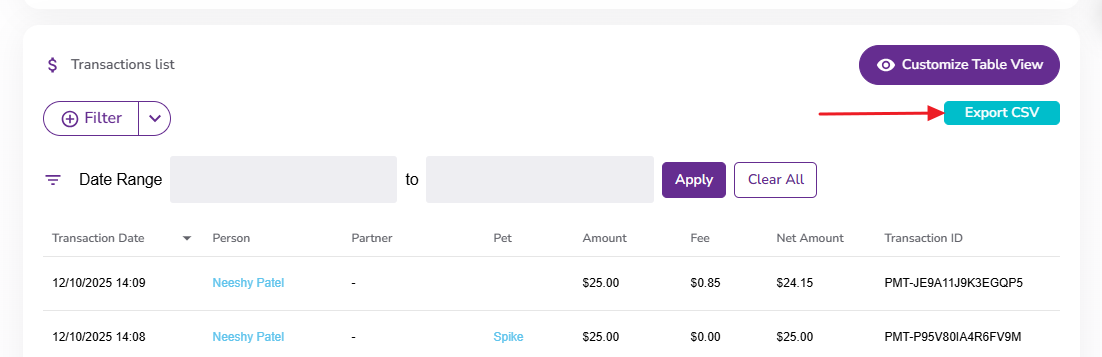
You can also export your full transaction table or your filtered view into a CSV that you can forward to your accountant or upload to your accounting software:
Editing Transactions
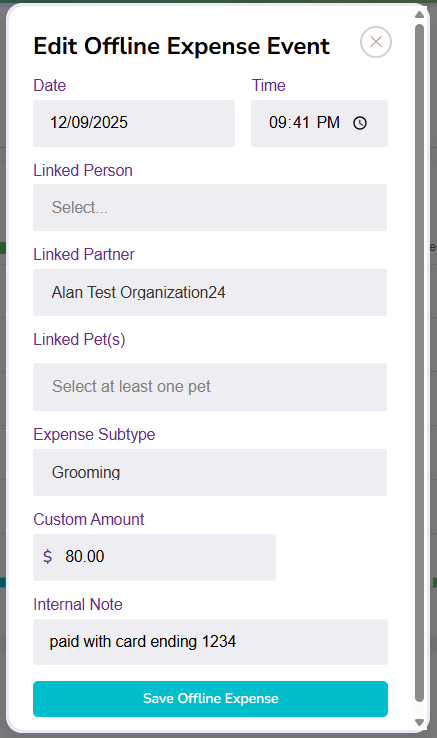
Mistakes happen! If you accidentally saved an Offline Expense with a wrong amount or forgetting to link it to a profile, you can hit the edit button to correct any information:

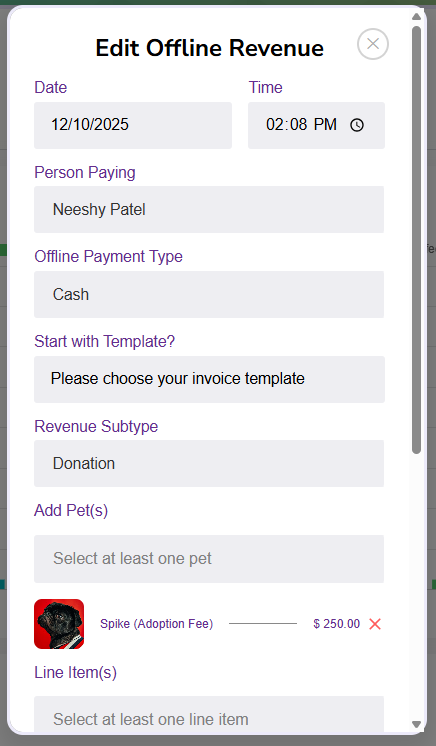
Transaction details can only be edited if they are recorded as Offline Revenue. Meaning the payment came from outside Pawlytics through cash, PayPal, Venmo, etc. and you or a teammate manually recorded the transaction into the financials section, you can edit any details of this transaction:
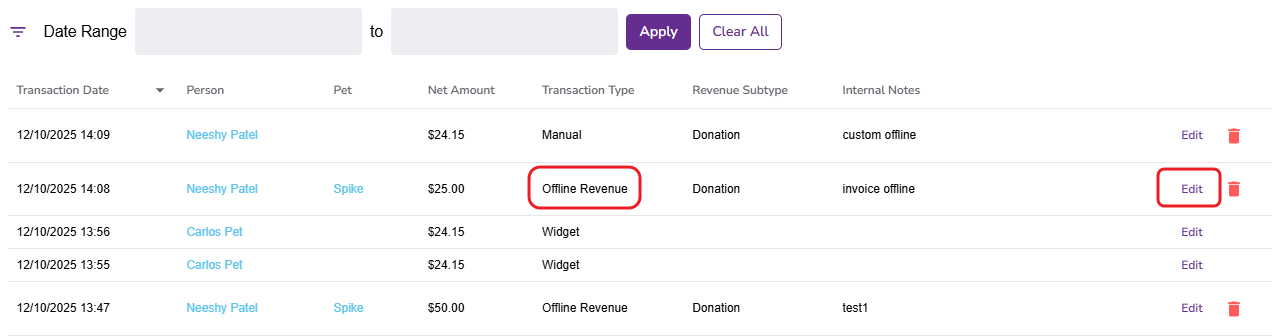
On any other type of payment transaction (manually run card/invoices/donation widget payments), you can only edit the Internal Note:
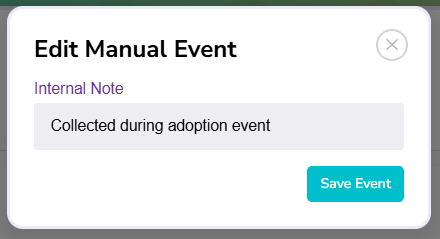
This is a note for your team only, It does not appear on the person's receipt. This is also only something entered by your team. If a person leaves a message, it will appear under the Customer Comments column.
Deleting Transactions
You can only delete transactions that were recorded as Offline Revenue or Offline Expense. This is because those transactions took place outside of Pawlytics and you are only recording them for financial tracking but no funds were exchanged through Pawlytics.
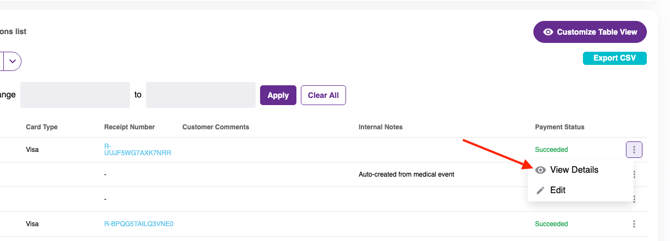
Card transactions cannot be deleted but they can be partially or fully refunded. First click the 3 dots at the end of the transaction line and click View Details:
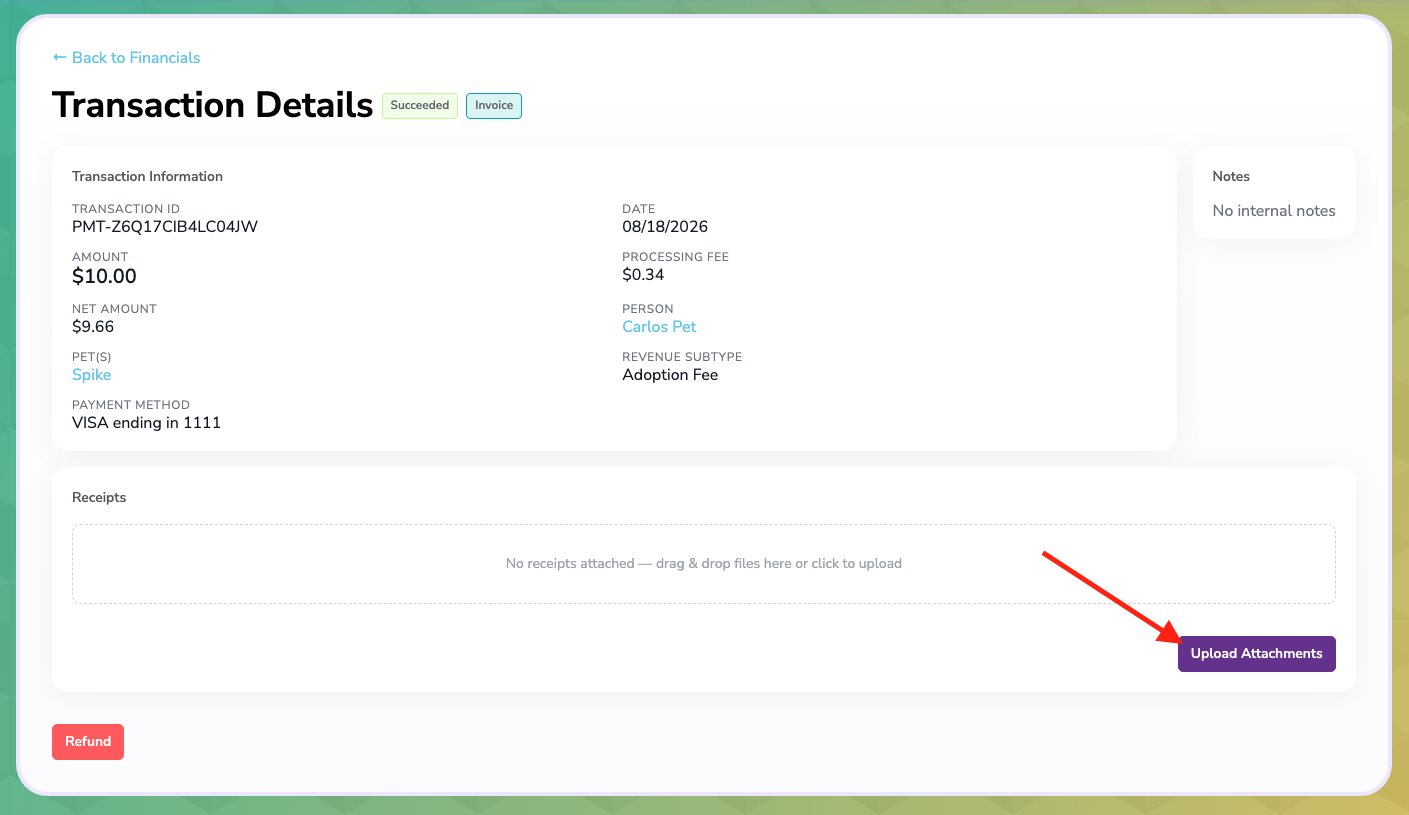
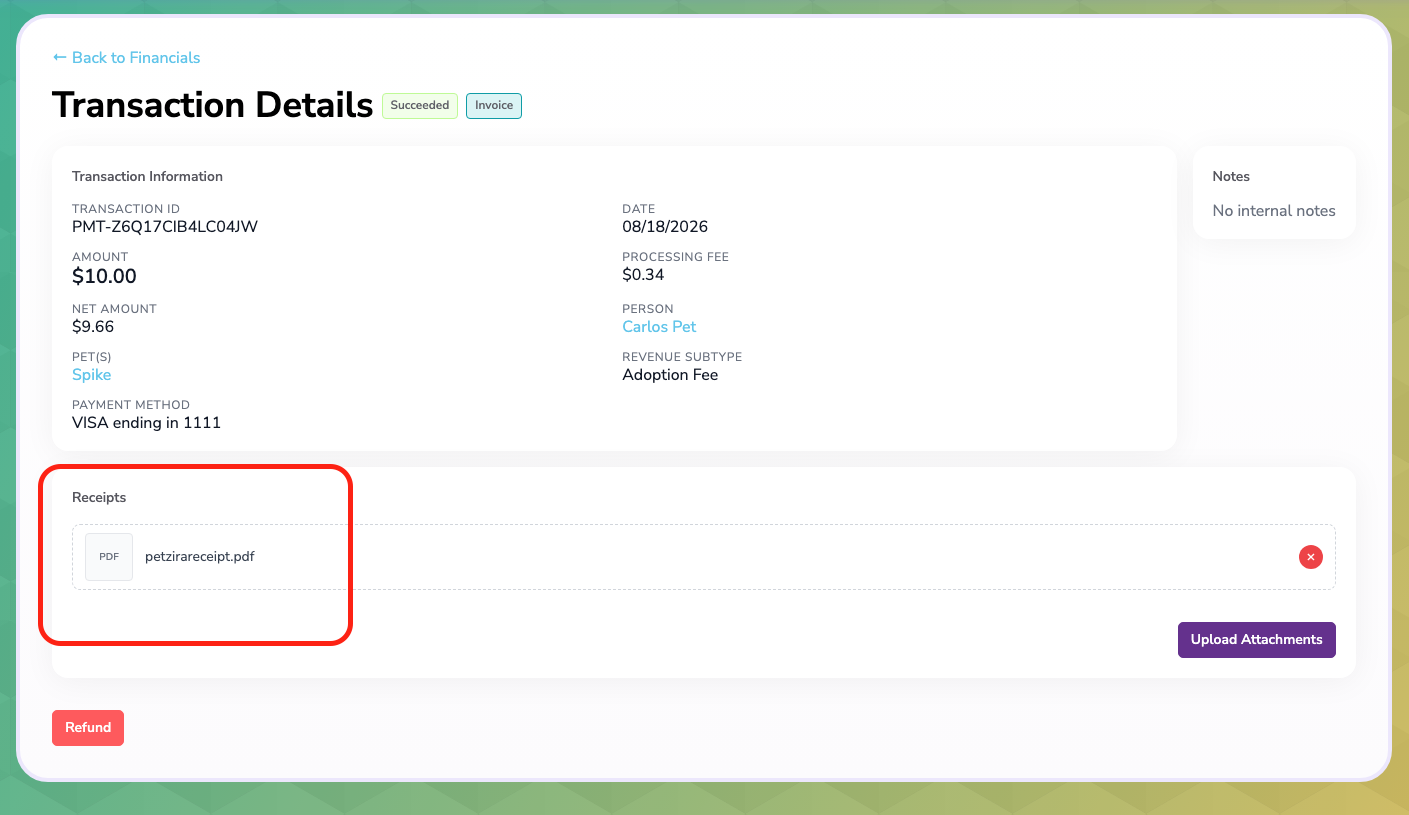
From this page you can upload any relevant attachments such as receipts for expenses paid or additional invoices for payments taken:
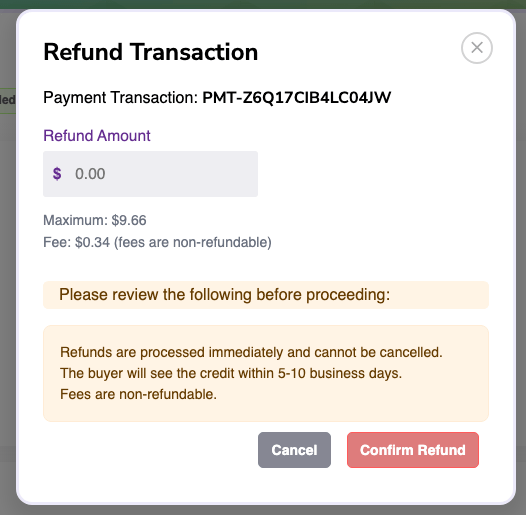
or issue a refund for payments made:
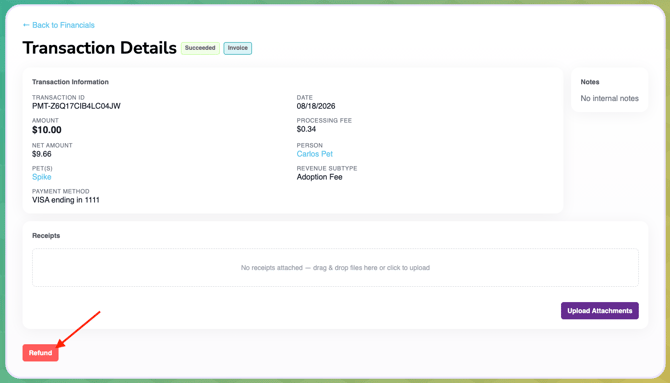
*PLEASE NOTE: The transaction fee cannot be refunded. When you begin to issue a refund, you'll be shown how much of the total payment was the transaction fee and how much is available to refund. Once you confirm you want to refund the amount you've entered, this CANNOT BE UNDONE.
List of Transaction Tables
| Location (Navigation Bar) | Tab | Information Available |
| Financials | All | All transactions- expenses and revenue, including net amount |
| Financials | Revenue | All incoming funds linked to any appropriate profiles |
| Financials | Expenses | All expenses linked to any appropriate profiles |
| Pets | Financials | All transactions affiliated with this specific pet - expense, revenue, and net amount |
| People | Financials | All transactions affiliated with this specific person- expense, revenue, and net amount |
| Partners | Financials | All transactions affiliated with this specific partner- expense, revenue, and net amount |